
Frontend network is overall a single platform to view user ‘s personal and functional information like payouts, left or right group etc. It has the following informational and functional links –

Network Details:This is the user’s Dashboard page and shows a summary of his Genealogy, Payouts, Left or Right Leg sales, Personal Sales.
The user can update his profile by clicking the Edit link under the Personal Information block.
This page also shows the user’s affiliate URL which he can use to refer new users to the network.
Genealogy:
This page shows the user’s genealogy in tree form. Each empty node in the Genealogy has a Add New link to place a new member at that particular node.

Left Group:
Use this section to view Left Group (users on your left leg) details like – user name, user key, sponsor name, status of the user. You can also view total number of user and total number of active user at this section.
Right Group:
Use this section to view Right Group (user on your right leg) details like – user name, user key, sponsor name, status of the user. You can also view total number of user and total number of active user at this section.
Personal Group:
This is the a list of users that you have personally sponsored (direct referrals) in the network. You can view each user details like – user name, user key, sponsor name, status of the user. Total number of users and total number of active users can also be viewed at this section.
My Consultants:
Use this section to view all members in your downline (left and right legs). You can check total number of users and total number of left or right legs at this section. A list of each user’s User name, User Key, Sponsor, Placement(left or right) and Status(active or inactive) is also available at this section.
My Payouts:
This page shows a list of all those payouts where a member has earned commissions and bonuses. This page summarises information about Total Amount Credited, Pending Payments, Processed Payments, Available Amount.
You can also view list of each payout’s date, amount and status at this section. Click at “view” link at action column to view each payout detail.
Join Network:
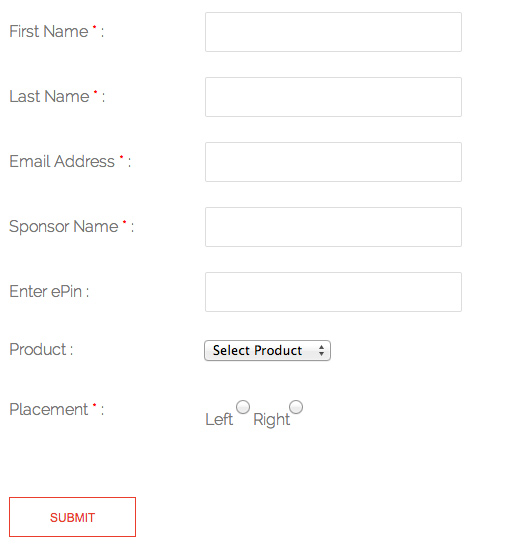
Use this section to become MLM user if you are non-MLM user. You have to fill “Join Network” form to become user. Form screenshot has been shown below –
ePin Update:
In case a member has registered on the front end without an ePin his default status in the network would be unpaid. After the member has obtained a valid ePin from the Admin, he can go to this page to input the ePin and change his status to Paid in the network. In case your network does not use ePins, then the Admin would need to visit the Users -> All User page in the WP Admin to mark this member as Paid.